Don't make 'readonly' fields less readable

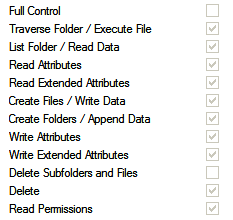
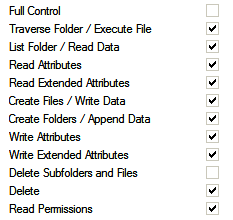
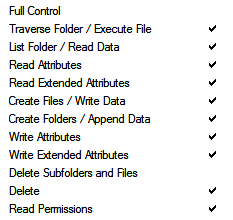
 There's a common UI anti-pattern of making "readonly" fields harder to read than editable fields. I think this is a poor technique. I blame it on Windows Forms -- but I've seen it out there on the wild web as well. If a control is readonly, then you should cater for the user actually wanting to read it. Shouldn't you? Newspapers, for example are readonly. And they are commonly in black and white. Fine, crisp, perfectly legible black text. Not dull gray. Rather than making the readonly fields dull gray, use some other form of visual hinting to differentiate between what can be edited and what can't. For example – here's some readonly checkboxes.  They are shown as dull gray with gray border. Instead, the check marks could be black, while only the control border is gray.  Or, perhaps the control border could disappear.  What about this drop down list – its 'readonly' status is indicated by gray text and gray border.  It gives the impression that it has no meaning and no influence. In fact, it's message is fairly important - perhaps extra important since the user has no control over it. It could instead have black text and gray border.  How about black text with NO border. It's easy to read, and it's clearly not editable.  I think that both of these are preferable to the 'make it gray' approach. Don't you?



And finally, as a reward to those who "clicked through", here's a repeat from last time, since no-one mentioned it ;-)

Got that? "Not a tuna!" Ha! That is genius. No, no. It is better than that. It is "genious."
'paul' on Thu, 22 Jan 2009 10:53:11 GMT, sez: I like the "remove the borders" approach, very simple and clear.
Captcha: meatbag
'Mike Woodhouse' on Thu, 22 Jan 2009 11:20:55 GMT, sez: Ahhhh.....heck. That's another fine website redesign you've gotten me into, Stanley.
'Jon' on Thu, 22 Jan 2009 11:29:09 GMT, sez: The problem with the "remove the border" approach is it can make the controls disappear altogether. Imagine that none of the checkboxes were checked in your list. Then, when they are read-only, the controls disappear completely. This might be confusing, or even distressing, to the user if they were expecting the controls to be there (we actually ran into this on a product I was working on).
'Kevin Berridge' on Thu, 22 Jan 2009 12:00:14 GMT, sez: I definitely agree that making readonly fields are to read is stupid.
Making the border gray could work, but in the case of the check boxes it was a bit too subtle. I think the same would be true for a text box.
Removing the border completely doesn't really work for all kinds of practical reasons. For example, if you have a set of controls and some are editable and some are not, it will look visually stupid.
I'd love to make a different suggestion, but I'm afraid I don't really have one.
'Brian R' on Thu, 22 Jan 2009 13:25:15 GMT, sez: I agree with your basic point, but I think the gray borders are too subtle. I can barely tell the difference while looking at it carefully. Would someone not looking carefully notice it? What about someone with poor eyesight?
Perhaps black text on a light gray background would work?
'Michael Wales' on Thu, 22 Jan 2009 14:28:04 GMT, sez: Many times, at least in OS design, the control is marked as read-only because the user has no influence or even a need to know that information.
For example, Internet Explorer Security settings may be managed by a higher authority on your network. By graying out those fields, you allow the user to passively ignore the areas in which they have no say in the matter and simply focus on the settings they are allowed to change.
Of course, why show it to the user if it doesn't pertain to them, right? I guess there is a reasonable advantage in allowing a user to actually see a setting, even if they can't alter it (for example, when discussing an issue with Tech Support).
'Emad Ibrahim' on Thu, 22 Jan 2009 16:17:08 GMT, sez: Excellent suggestion. It was one of those things that we just do out of habit without giving it too much thought.
It is good to once in a while do like you and think outside the box and question the conventions.
'Douglas' on Thu, 22 Jan 2009 16:31:58 GMT, sez: It's interesting that you call these fields "read only", I've not heard that one before. The normal term is "enabled", eg form elements go "grey" when you disable them.
Using a disabled user-input form to display data seems very wrong to me.
> It gives the impression that it has no meaning and no influence.
This is perfectly correct, for a field which is disabled. A more modern approach would be to completely hide fields which are not appropriate. This helps avoid the apparent confusion you express in this article.
On the other hand, if the intent is to present a piece of text which cannot be changed, you are perfectly right, just go ahead and display it as a piece of text, free of other distracting decoration.
PS: Reset buttons on forms are also old-fashioned!
'Shaun Austin' on Thu, 22 Jan 2009 17:58:05 GMT, sez: I'm with Douglas, I think you're confusing read-only with Disabled.
'lb' on Thu, 22 Jan 2009 21:19:58 GMT, sez: @Shaun/@Douglas
>confusing read-only with Disabled
maybe, maybe not.
i could've made this a lot clearer, and talked about disabled.
I think people often disable controls when what they should be doing is swapping the control out and using a label.
If the message is "this content is irrelevant" then disable the control. (In the examples above the content is not irrelevant, so it shouldn't be shown in a disabled control)
If the message is "this content is relevant, but you don't have the ability to change it" -- then don't use a disabled control. Either use a label, or (if the control has good support for readonly mode) use readonly mode.
'Don2' on Fri, 23 Jan 2009 01:39:07 GMT, sez: It's a salmon
'Alb' on Fri, 23 Jan 2009 13:38:21 GMT, sez: I'm not sure just removing the borders or making them gray creates enough of a contrast with controls that are no disabled. To really illustrate your examples I think you need to show a form with many elements - some enabled, some disabled to demonstrate the contrast between them.
|